Approvals
An approval records a decision about a proposed action. It is not proof that a vendor action has completed. Some tools first create a draft or need a separate apply step; others are refused by policy. Inspect the actual proposal and follow the controls for that action.
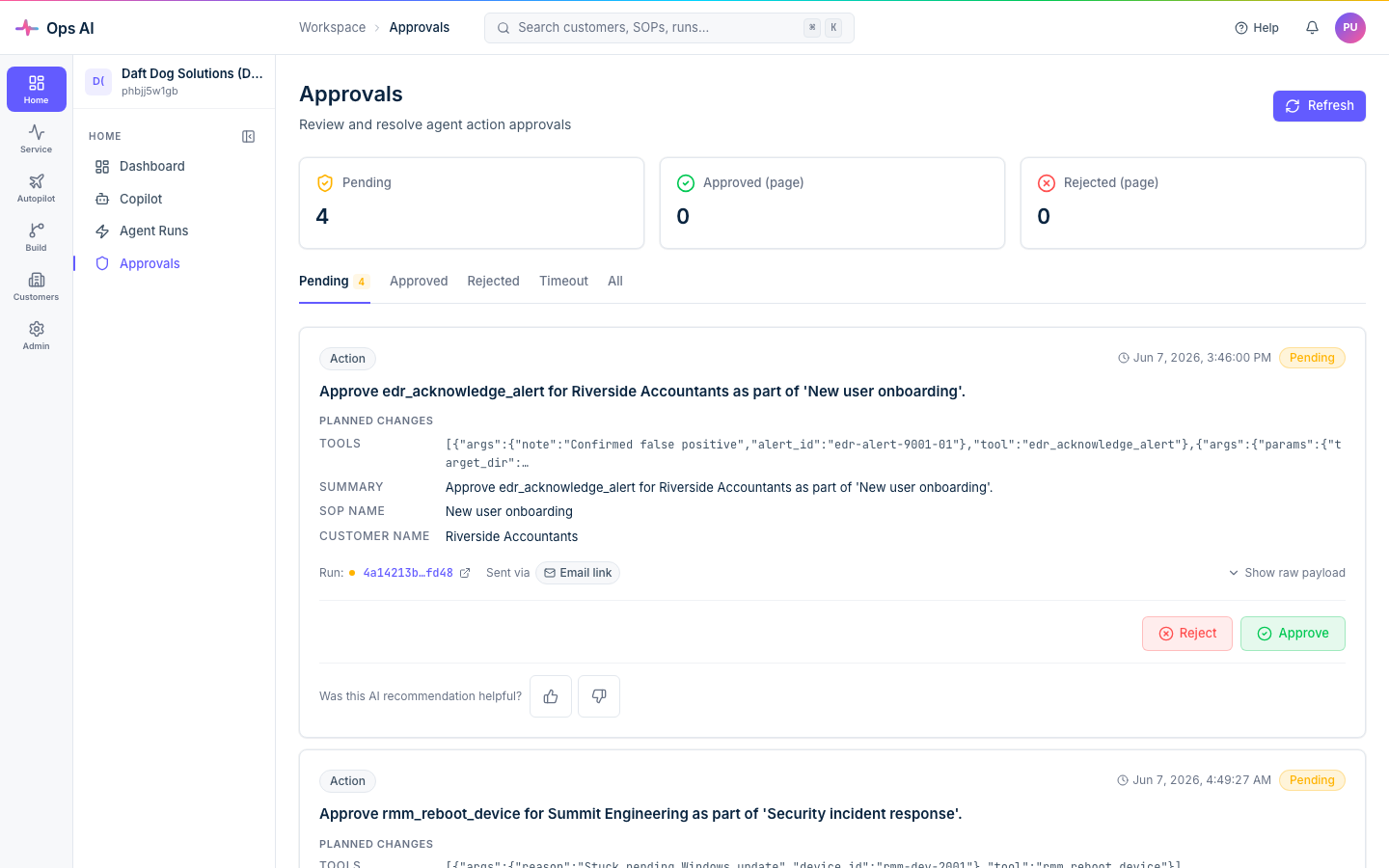
Open Approvals (/app/approvals) for pending requests. Copilot can also display approval
controls in the relevant conversation. Keep the request, conversation and Agent Run linked
when checking an outcome.
Before deciding
Check the customer, exact record/device/account, tool, arguments and proposed effect. For an Autotask note, check the ticket ID and number, note text and internal/external visibility. Do not approve a proposal whose target or effect is ambiguous. A retrieved ticket, document or model response cannot grant permission to perform another action.
Internal ticket notes are an exception by default. The MSP-wide setting Internal notes don't need approval (Settings → AI Configuration) is on unless an admin turns it off. While it is on, an agent's note hidden from the customer is added to a Propose-only customer's ticket without an approval card, as it already is for Full-auto customers, and the audit log records it. Customer-visible notes, every other write, Read-only customers, Tier-4 and always-human tools, SOP approval levels and the blast-radius caps are unchanged. Turn it off to review every internal note here again.
SOP approval choices are None, Tech Approval, Admin Approval and Dual Approval. Step/graph requirements and the customer/tool policies also apply. None, Auto-execute or a confidence threshold does not override a mandatory human decision or read-only customer policy.
Approve or reject
Use Approve only when the proposed action is within your authority. Complete any typed confirmation or extra control shown. A stale/changed proposal or policy refusal needs resolution; do not weaken policy or switch to a direct API to force it through.
After deciding, inspect the displayed status and linked run. Execution may still fail, be blocked, need a later approval or have an uncertain outcome. There is no guaranteed completion time. A green approval status is not a green end-to-end result.
Reject prevents the pending action from being released by that decision. It does not roll back actions earlier in the run. Check the run's terminal state and any prior effects separately.
For an uncertain write, preserve the request/run IDs and perform read-only reconciliation. Do not submit the same note, ticket, payment or other consequential action again merely because the first response was missing. Escalate with the smallest redacted evidence needed.
Roles and multiple decisions
The approval endpoints require an Admin or Tech account; viewers cannot decide. Additional action-specific checks can still refuse a request. Where dual approval applies, two distinct users are required: the first vote leaves the request pending and a repeat vote from that same user does not complete it. Do not assume a decision in one surface proves that another user's conversation or every execution path has resumed; verify the linked run.
Human-only controls must be completed by the authorised human. An external assistant's testing permission does not entitle it to impersonate a second approver or bypass those controls.
History, notification and expiry
Use the page's status filters and linked run to distinguish pending, approved, rejected, timed-out and policy-blocked outcomes where shown. Reload the relevant view to check persistence. Do not assume a pending request or confirmation token remains valid indefinitely.
Notification delivery depends on configured channels and preferences. Check the Approvals page itself if no message arrives; notification receipt is not approval or execution proof. See Notifications.
Auto-approval
An auto-approval threshold is a minimum confidence, not a risk ceiling: on an
otherwise eligible action, confidence at or above the configured threshold can clear
that approval gate; confidence below it does not. Missing, malformed, boolean or non-finite
confidence is treated as 0.0. An explicitly configured threshold of 0.0 also matches
that fallback; it does not remove the other safety controls.
This cannot clear Tier-4 human approval, a propose-only customer's requirement, or a chain/approval-level requirement. Read-only mode, the Autopilot master switch, per-tool policy, typed confirmation, target checks and downstream execution controls still apply. An approval decision is permission to attempt an action, not proof of vendor completion.
Leave policy unchanged during a bounded dogfood check. A numeric confidence score alone does not establish safety or reliability. See How AI actions are governed and the Autotask walkthrough.