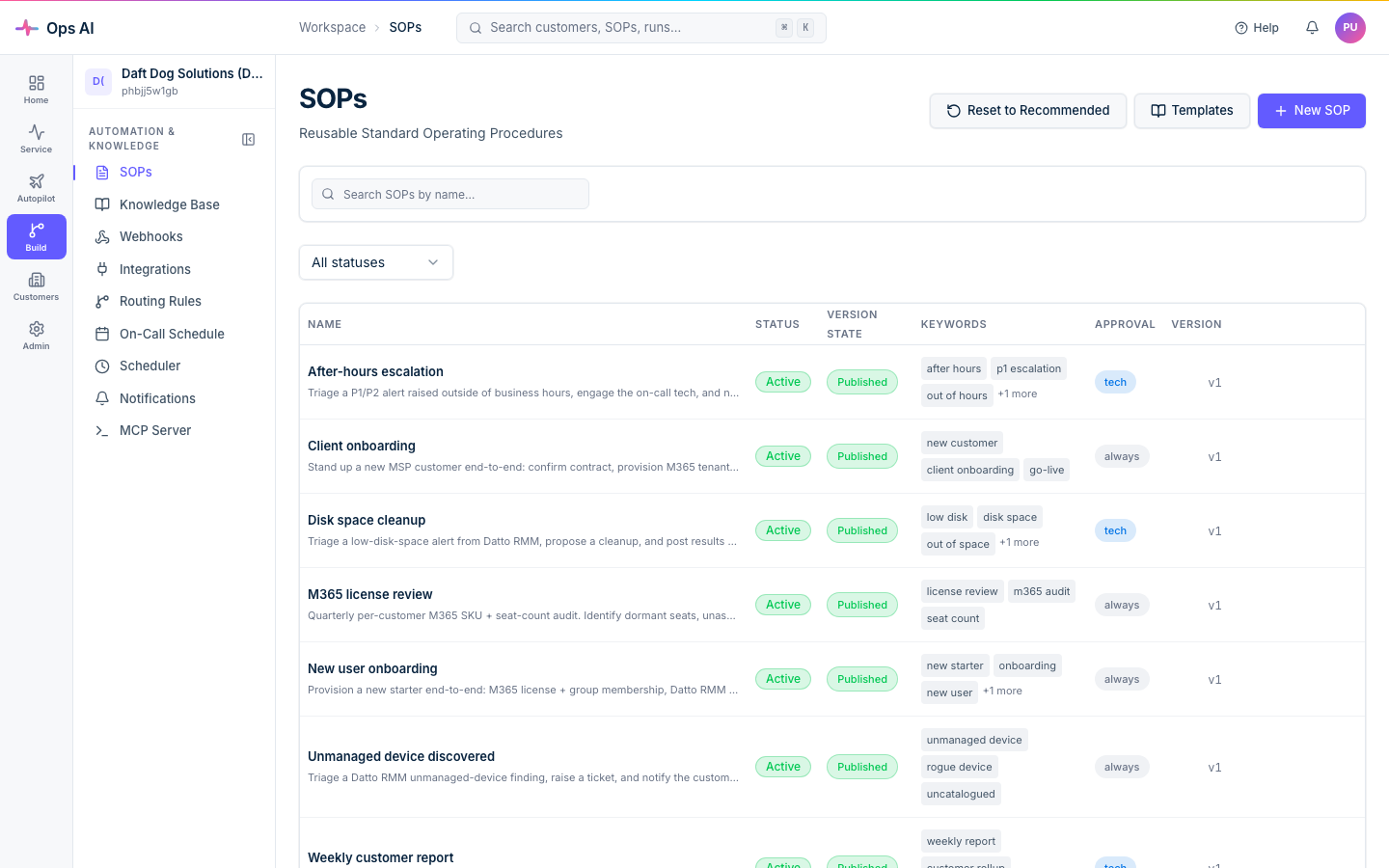
SOPs (Standard Operating Procedures)
SOPs describe repeatable work. They may contain natural-language steps or an explicit tool graph; execution depends on the selected version, trigger, available tools and runtime policy. Do not assume that writing a procedure automatically enables it or posts a result to an Autotask ticket. A ticket note requires an explicit tool action and its normal controls.
Authoring and versions
Open SOPs (/app/sops). Open an existing procedure to inspect it and use Edit to change it,
or use the creation/template controls when authorised to create a new one.
The editor supports ordered instructions with required tools and approval overrides, and a visual
graph with Start, Tool Call, Condition, Approval Gate and End nodes. Tool parameters
can refer to trigger values such as {{trigger.ticket_id}}; validate the actual supplied context
and target rather than assuming a placeholder resolves to the intended ticket.
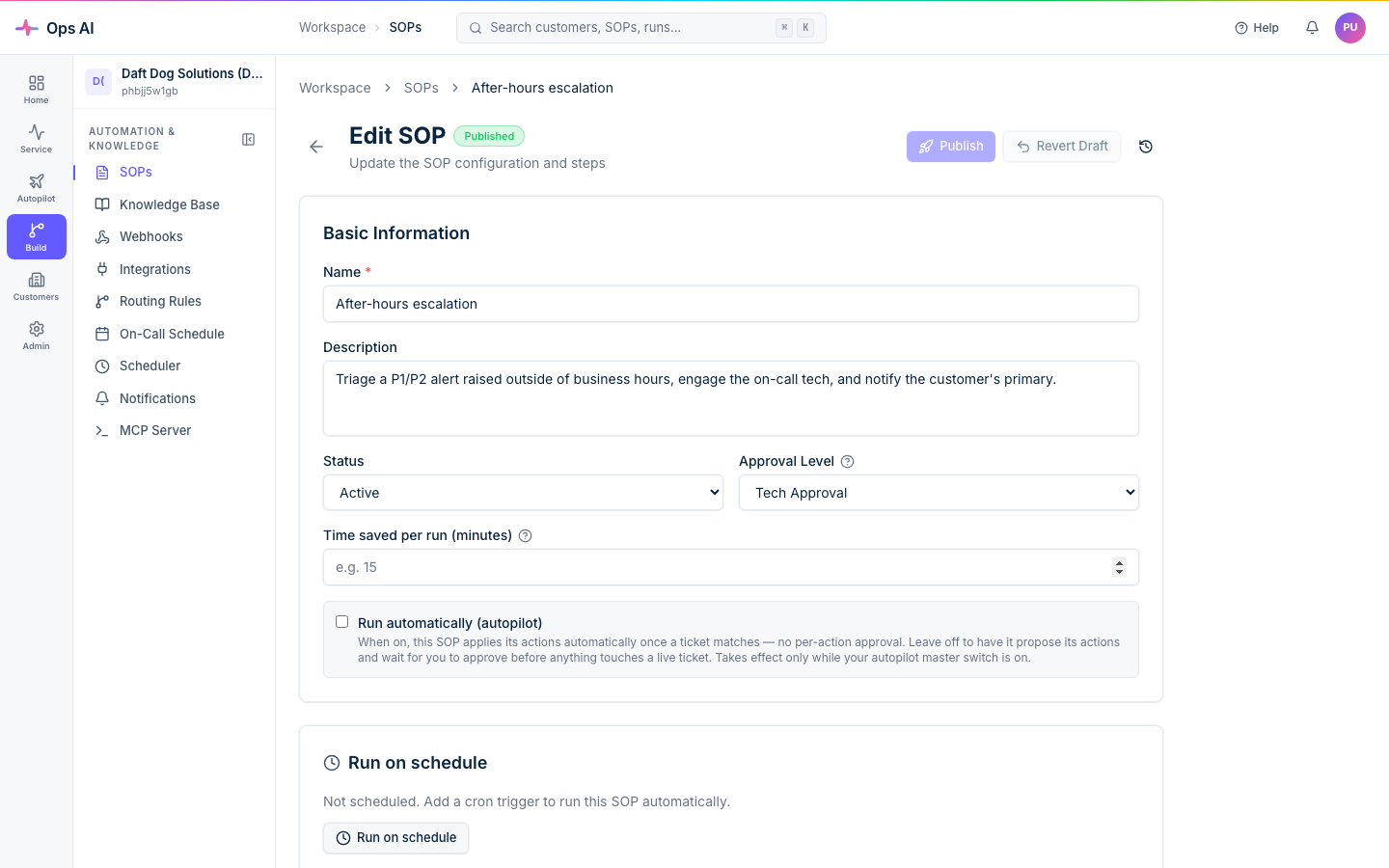
The status choices are Active, Inactive and Draft. The SOP approval choices are None, Tech Approval, Admin Approval and Dual Approval. These are distinct from the customer's read-only/propose-only/full-auto policy and from the separate Auto-execute setting. Choosing None does not bypass customer policy, tool restrictions or mandatory human gates.
Saving editing changes and publishing an executable version are separate operations. Inspect the draft/published state and version history. Use Publish only when the intended version is ready for its authorised execution route. Do not assume the latest saved draft is the version handling live events. A dry run normally resolves the draft first, then the published version; version history can select a particular version for rehearsal.
How live execution starts
- Webhook routing: a routing rule selects an agent such as Triage. Triage can match an SOP and chain to SOP Execution. A routing rule does not directly select SOP Execution.
- A configured schedule: a scheduled SOP job selects an SOP. Creating or enabling a schedule can start real work; agree the customer scope and authority first.
The SOP detail/editor provides Dry Run for rehearsal. There is no generic “Run SOP against this ticket” button on the agent-run detail page. Do not invent a manual control or replay an unrelated production event as a substitute.
Matching uses the SOP's trigger keywords, conditions and customer filter together with the routing path. Review these before publishing or activating a procedure. For a bounded test, leave Auto-execute off, use the intended approval level, and avoid changing shared routing, customer policy or schedules merely to make a test proceed.
Dry run
Choose Dry Run, inspect the selected SOP/version, and enter the authorised Trigger context (optional JSON) if needed. Start Dry Run opens the resulting Agent Run.
- Read tools can call live vendor APIs, so the customer/data scope still matters.
- Write tools are simulated rather than applied to the vendor.
- Explicit approval-gate nodes are logged without pausing. Other policy/target checks can still refuse an action; simulated failures remain failures.
- The run has
mode=dry_runand a simulation banner. Its execution status is separate from that mode; do not require a status literally calledsimulatedor count simulated writes as real changes.
A rehearsal uses model/vendor resources and creates run evidence. It does not prove live approval resumption, vendor write success, webhook delivery or notification behaviour.
Approvals and results
A live run that requires approval pauses before the relevant action. Inspect Approvals
(/app/approvals) and the linked Agent Run. Check the exact target and proposed arguments.
Approval allows an execution attempt; inspect the subsequent tool result and persisted outcome.
Rejecting prevents the pending action, but does not undo earlier steps that already completed.
Use Agent Runs (/app/agent-runs) for the execution timeline and SOP Reports
(/app/sop-reports) for available reports. Reload to confirm saved evidence. If execution is
failed, pending, blocked or uncertain, retain that status rather than calling the workflow complete.
Do not use a public share link for private customer evidence without permission to share it.
For an introductory Autotask check, start with the Autotask walkthrough. Keep automatic triage, schedules, multiple writes and other vendors outside that first test unless separately agreed.